How to Sync Your Airbnb Calendar with Google Calendar
Get your Airbnb calendars synced to Google Calendar in under 5 minutes
~5 min total setup
Quick & easy process
No coding required
Get your Airbnb calendars synced to Google Calendar in under 5 minutes
If you're an Airbnb host looking for a way to sync your Airbnb calendar with Google Calendar, you've come to the right place. Google Calendar's built-in iCal import only refreshes once every 12–24 hours, which means new bookings, cancellations, and date changes can take an entire day to appear. SynciCal solves this by syncing your Airbnb iCal feed to Google Calendar every 15 minutes.
This guide walks you through the complete setup process in 9 simple steps. You'll create a dedicated Google Calendar, connect it to SynciCal, find your Airbnb iCal link, and start automatic syncing — all in about 5 minutes. No coding, no software installation, and no complex Property Management System required. Once set up, your Airbnb bookings will appear on any device where you use Google Calendar: your phone, tablet, laptop, or even a smart display.
What you'll need: A Google account, an Airbnb hosting account with at least one listing, and about 5 minutes. If you have multiple Airbnb listings, you can sync them all to the same Google Calendar with color coding to distinguish each property. Plans start at just $4/month for up to 10 listings, with a free 7-day trial to get started.
Watch the animated walkthrough below to see exactly how to set up SynciCal. The demo walks you through each step of connecting your Google Calendar and Airbnb listings.
Use the controls to play, pause, or navigate between steps at your own pace.
Follow the detailed instructions below with direct links to help you complete each step.
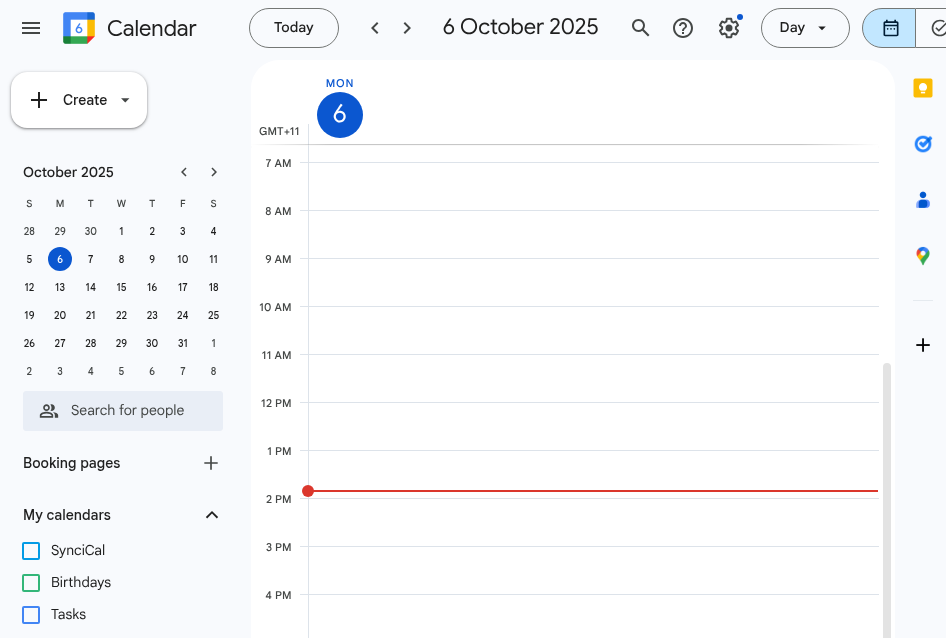
Go to Google Calendar (click me!) and make sure you are signed in. If you have multiple Google accounts, make sure you're using the one you want your Airbnb bookings to appear on. This is the Google Calendar you'll check on your phone, desktop, or tablet to see upcoming guest check-ins and check-outs.
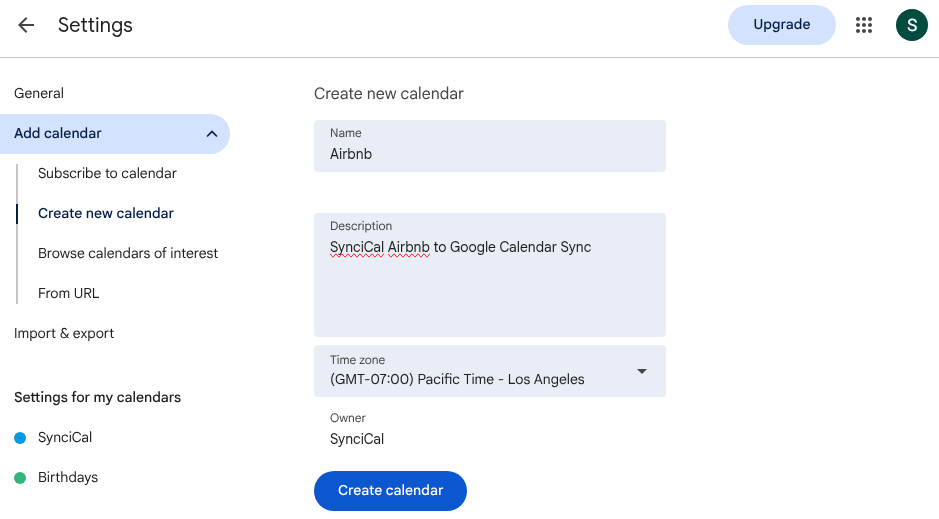
Go to Settings → Add Calendar → Create new calendar (click me!).
We recommend creating a dedicated calendar just for your Airbnb bookings rather than using your personal calendar. This keeps your hosting schedule separate and makes it easy to share with cleaning teams, co-hosts, or property managers without exposing your personal events.
Click Create calendar.
Navigate to Calendar settings for the calendar you just created.
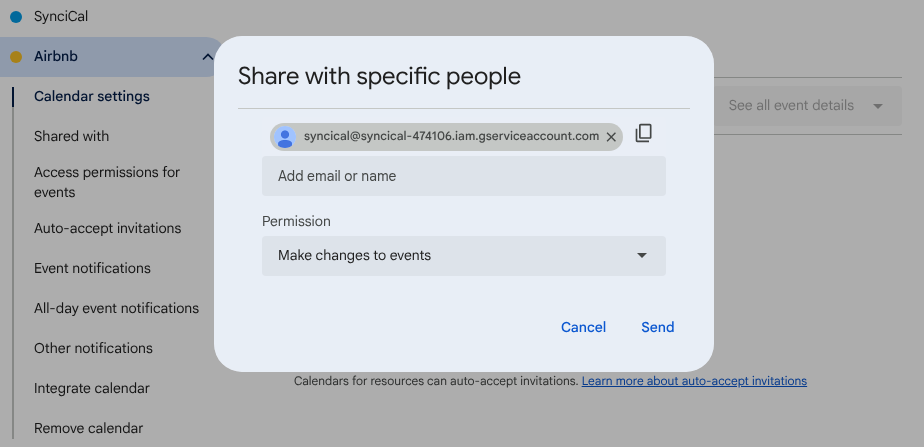
Scroll to Share with and click Add people and groups.
Invite our SynciCal service account, which allows us to add and update your Airbnb booking events on your Google Calendar:
syncical-staging@syncical-474106.iam.gserviceaccount.com
Set permissions to: Make changes to events
Your data is secure. Our service account can only access the specific calendar you share — not your personal calendar, emails, or any other Google data. Learn more about our security practices.
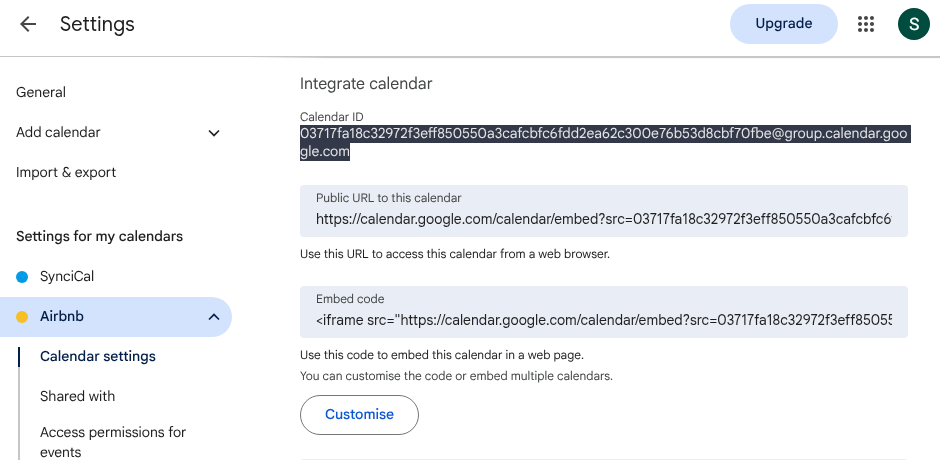
Still in the calendar settings, scroll down to the Integrate calendar section.
Copy the Calendar ID — it usually looks like an email address ending in @group.calendar.google.com. You'll need this when signing up for SynciCal in the final step.
Now switch to Airbnb. Log in to Airbnb hosting (click me!) and navigate to Calendar.
You'll see all your listings displayed in a multi-calendar view. This is where you'll find your Airbnb iCal link — a unique URL that Airbnb provides for each listing containing your booking data in iCal format.
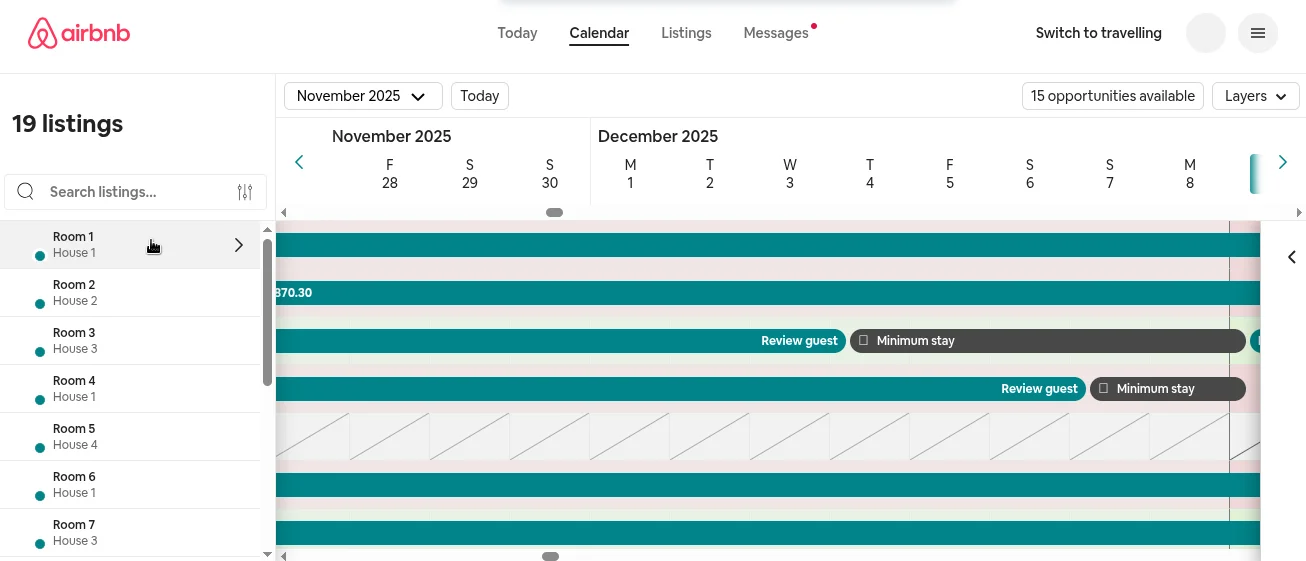
Click on the specific listing you want to sync from the left sidebar.
This will open the individual listing's calendar view showing its availability and bookings. If you have multiple Airbnb listings, you'll repeat steps 6–8 for each property you want to sync.
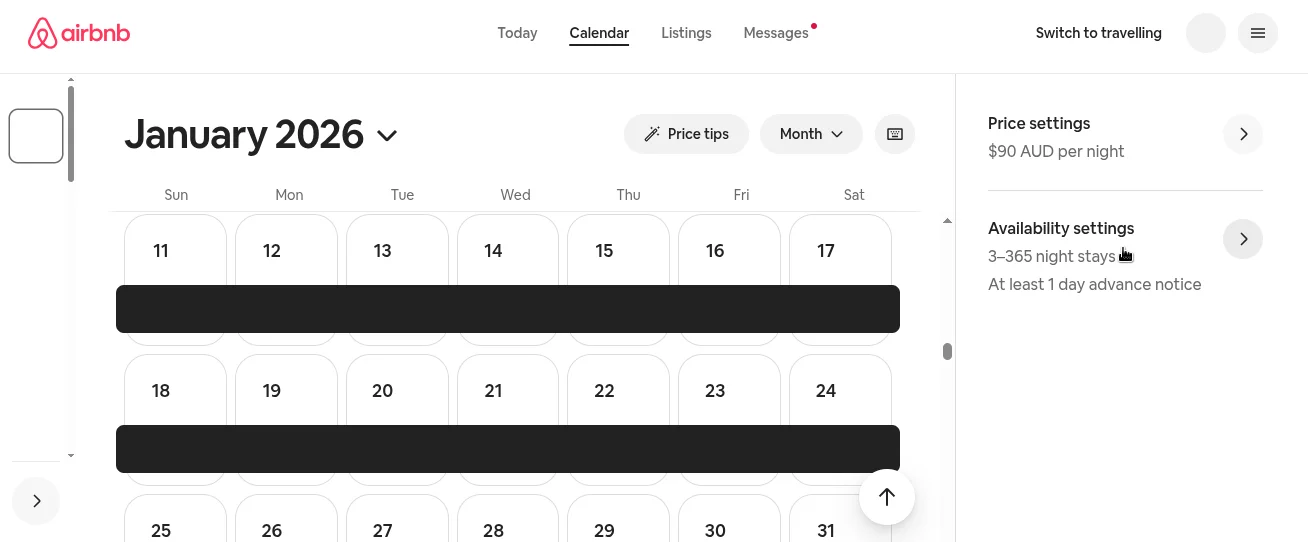
In the right sidebar, click on Availability settings.
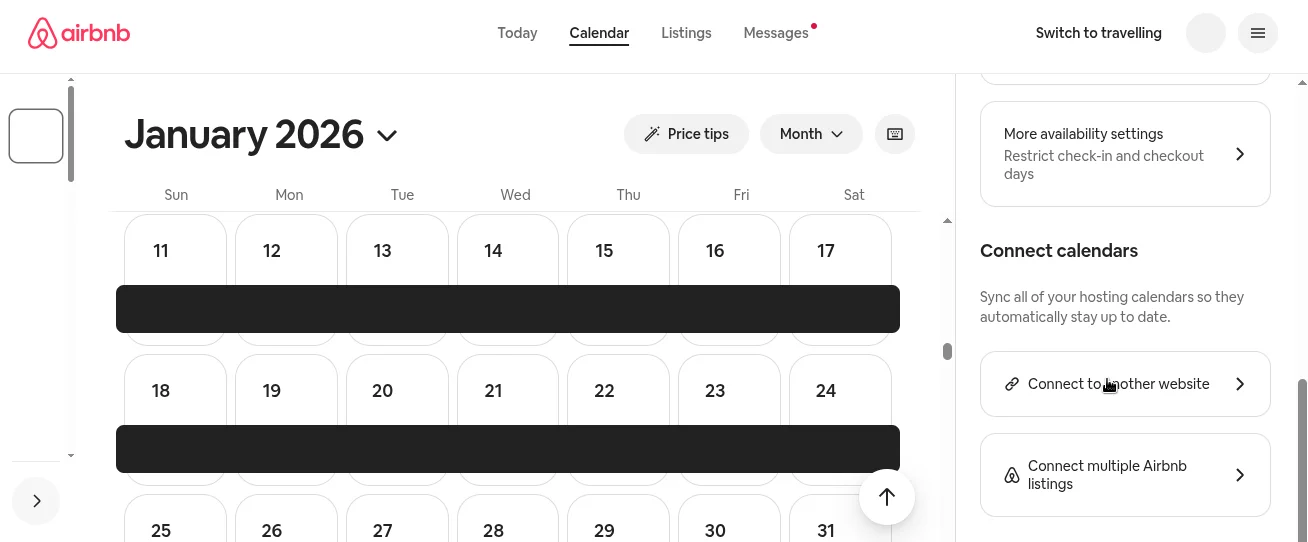
Scroll down to find the Connect calendars section, then click Connect to another website. This is where Airbnb lets you export your calendar as an iCal feed that other applications can read.
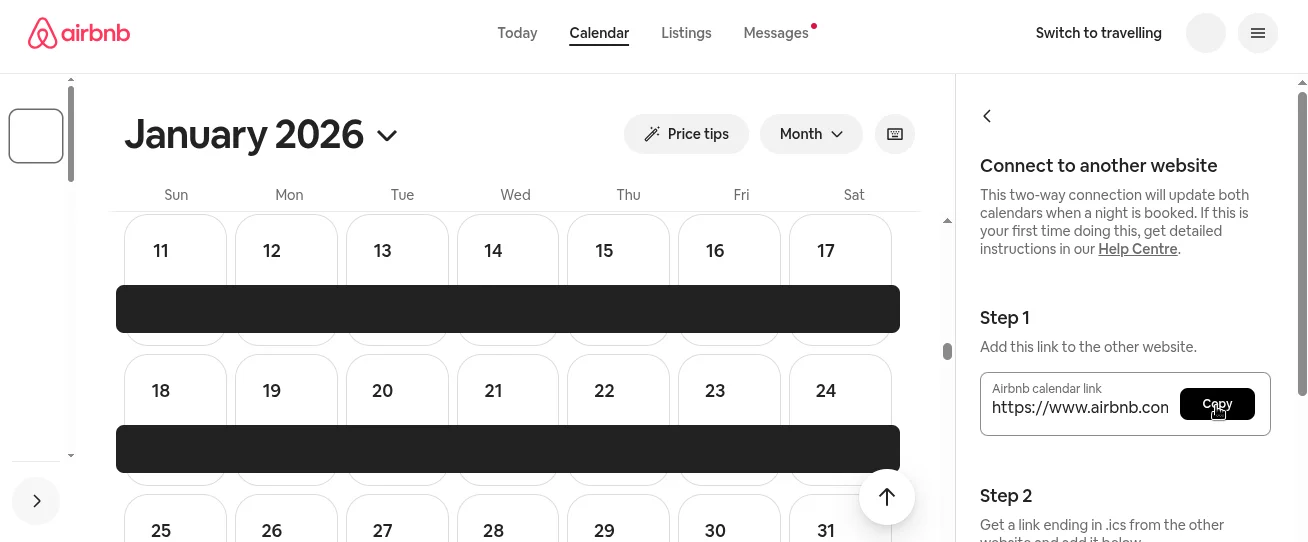
A dialog will appear showing your Airbnb calendar link — this is your iCal URL.
Click the Copy button to copy the iCal URL to your clipboard. This URL is unique to your listing and contains your booking calendar data. Keep it handy for the next step!
Tip: Your Airbnb iCal link typically starts with https://www.airbnb.com/calendar/ical/ and ends with .ics. If you have multiple listings, each one has its own unique iCal URL.
Sign up for SynciCal with:
We’ll connect everything and start syncing your bookings automatically.
Start Free TrialAn Airbnb iCal link is a URL that Airbnb generates for each of your listings. It lets other calendar apps (like Google Calendar) read your bookings automatically. To find your Airbnb iCal link, go to your listing's Calendar, open Availability settings, scroll to Connect calendars, and click "Connect to another website." The link will be displayed for you to copy. Each listing has its own unique iCal URL — see Steps 5–8 above for the complete walkthrough with screenshots.
Yes — Google Calendar has a built-in "From URL" import feature that can subscribe to any iCal feed. However, Google only refreshes these external calendars once every 12–24 hours. This means a booking made at 9 AM might not appear in your Google Calendar until the following day. For hosts who need timely updates, this delay can lead to scheduling conflicts and missed communications with guests or cleaning teams. SynciCal syncs every 15 minutes, ensuring your calendar stays current throughout the day.
Yes. SynciCal lets you sync multiple Airbnb listings to a single Google Calendar. You can assign different colors to each listing so you can instantly tell which property a booking belongs to. Plans support up to 10 listings on the standard tier, with higher tiers available for hosts managing more properties. See pricing details.
SynciCal does one thing well: it syncs your Airbnb iCal calendar to Google Calendar every 15 minutes. We are intentionally simple and affordable. Property management systems offer comprehensive tools for messaging, pricing, cleaning, and multi-platform distribution — but they typically cost $20–50+/month. If you just need your Airbnb bookings in Google Calendar for visibility, sharing with your team, or personal scheduling, SynciCal is the simpler, more affordable option at just $4/month. Learn more about what SynciCal is and isn't.
Yes. Your Airbnb iCal link contains your booking information, so treat it like a password. Only share it with services you trust. SynciCal keeps your link secure and only uses it to sync your calendar. We never share your data. Read our privacy policy for full details.
Make sure you're in your Airbnb hosting dashboard (not the guest view). Navigate to Calendar, select a specific listing, then look for Availability settings in the right sidebar. The "Connect calendars" section is near the bottom of the availability settings page.
Your Google Calendar ID should look like an email address, typically ending in @group.calendar.google.com. Make sure you're copying the Calendar ID from the Integrate calendar section in your calendar's settings — not the calendar name or your email address. It will be a long string like abc123def456@group.calendar.google.com.
Double-check that you set the sharing permission to "Make changes to events" (not just "See all event details"). Also verify you shared with the correct service account email: syncical-staging@syncical-474106.iam.gserviceaccount.com. If you're still having trouble, email us at support@staging.syncical.com and we'll help.
There are a few ways to get your Airbnb reservations into Google Calendar. The simplest method is to use Google Calendar's built-in "Other calendars → From URL" feature — paste your Airbnb iCal link and Google will import your bookings. However, Google only refreshes imported calendars every 12–24 hours, which means new bookings and cancellations can take up to a day to appear.
SynciCal uses the same Airbnb iCal link but syncs it every 15 minutes instead of once a day. It also creates separate calendar events for check-in and check-out times (not just the booking span), lets you customize event titles, colors, and visibility, and supports manual bookings for direct reservations that don't come through Airbnb.
Find and copy your Airbnb iCal export URL in 3 steps. Works for all Airbnb listing types.
How Airbnb Calendar Sync WorksLearn how SynciCal syncs your Airbnb calendar with Google Calendar every 15 minutes automatically.
What is SynciCal?SynciCal connects Airbnb to Google Calendar so bookings, check-ins, and check-outs appear automatically.